


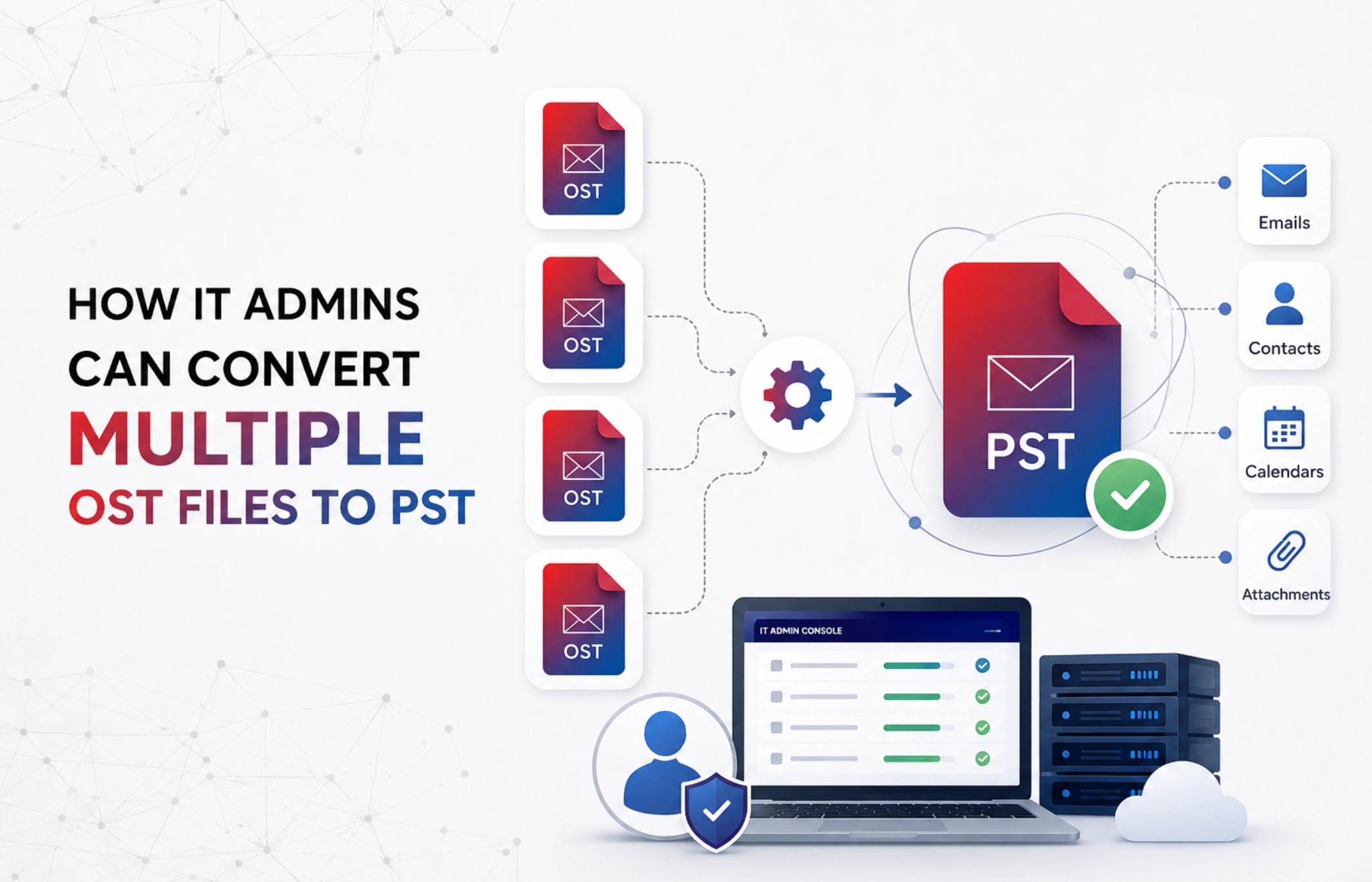
IT admins manage Outlook data of multiple users. Their role comes with the responsibility of preserving valuable data. In organizations where the head count is in several thousands and where scores of employees leave the organization on a daily basis, the role of IT administrators becomes challenging. Hundreds of OST files may accumulate due to employee onboarding and offboarding in large organizations. IT admins may find it difficult to manage these data files (.ost) on an individual level. It is more difficult when an OST file reached maximum size or becomes orphaned due to server or profile-related issues. It is here that the need of converting multiple OST files to PST becomes essential.
It may be noted that Microsoft doesn’t provide any tool to directly convert an OST file to PST format. However, IT administrators can utilize certain built-in utility to perform this task. But if utility doesn’t support bulk OST conversion. As a result, IT teams often rely on specialized OST to PST converter software to streamline the process. These tools are quite smart. They ensure bulk conversion with precision. Such converter not only saves loads of productive time but also preserves mailbox integrity.
To know more about the aspects related to bulk conversion, check out our guide titled “How IT Admins Can Convert Multiple OST Files to PST.”
Why IT Admins Need to Convert Multiple OST Files to PST:
- In the event of employee offboarding such conversion is required
- In the event of Exchange Server migration
- When the organization decides to shift to Microsoft 365
- For the mailbox backup and archiving
Manual Methods for Converting OST Files:
This part of the guide will shed light on functionalities available to convert an OST file to PST. Check the below guide:
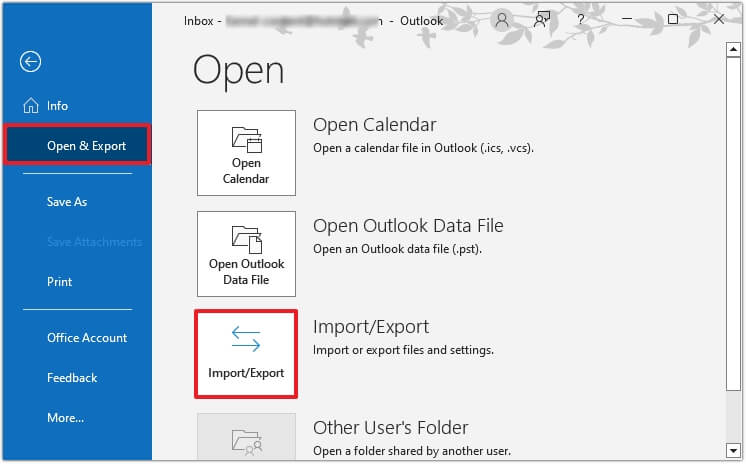
Method 1: Import/ Export Wizard: Just login to the Outlook with the same Exchange account and follow the below instructions:
- Browse Files.
- Navigate to Open & Export.
- Click ‘Import & Export’.
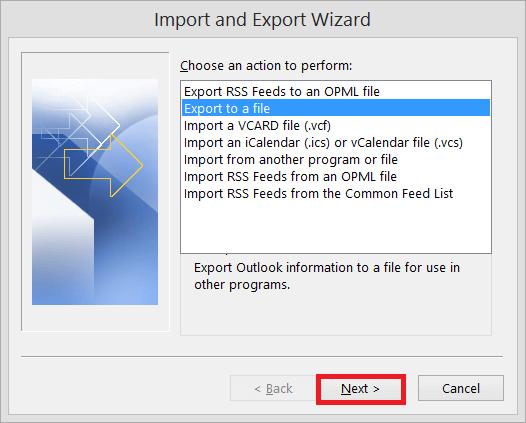
- Select ‘Export to a file’ action. Press ‘Next’ to proceed.
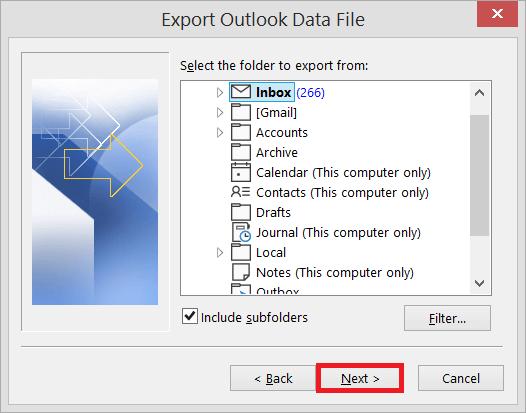
- Now an ‘Export to a File’ box will appear.
- Select the Outlook Data File (.pst) option. Then press Next.
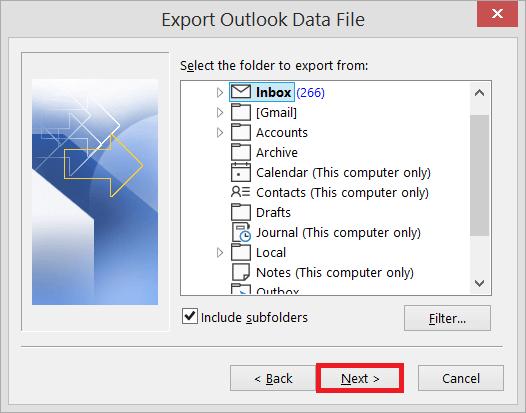
- Select folders as well as sub-folders for the export. Press Next.
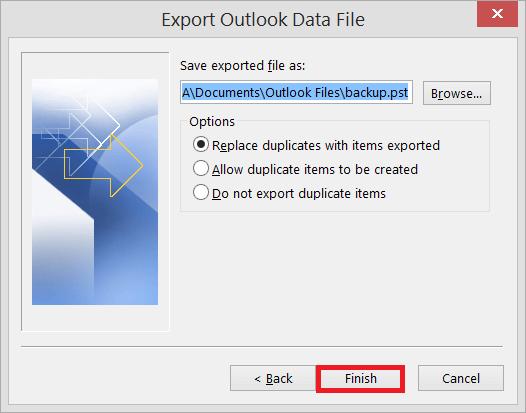
- Now browse the file path where you wish to export/save the new PST file. Also select the ‘Replace duplicates with items exported’ option.
- After this click the ‘Finish’ tab.
Method 2: Drag & Drop Method: It is the simplest approach. This way is recommended for small file transfer only. It is not perfect for bulk OST file migration. Just perform the following actions:
- Creation of a blank PST file
- After this select OST mailbox items
- Drop those selected folders to the newly created PST file
Shortcomings of Built-in Functionalities:
- Complex: Non-technical users may find such methods complex, risky and uneasy.
- Time Consumption: Manual methods always consume substantial productive hours. The migration needs manual effort.
- Large Mailboxes: Manual methods are not suitable to export large mailboxes.
- Distort Hierarchy: Manual approaches may disturb folder structure and hierarchy.
- Orphaned Files: These approaches will not work in case of orphaned, inaccessible .ost files.
Method 3: Utilizing a Professional Converter Tool (Expert’s Recommended): Since IT administrators deal with a large number of OST files, manual methods are not practical. The built-in functionalities will also fail in cases where an OST file reached maximum size. The top priority of every IT admin is data safety. At the same time, they require a solution that offers speed, scalability, and reliable performance. All these features come along with an OST to PST Converter Software. These tools provide precision as well as scalability. Professional converter tools are developed to process multiple OST files simultaneously. These tools also promise the integrity of mailbox folders. Tools like Stellar Converter for OST are applauded for their quick conversion speed. The Technician edition of Stellar supports batch processing, which makes the task of an IT admin easier. Features like Auto Split PST, auto OST detection, preview mode, etc. are really praise worthy.
Why Stellar Converter for OST is the most reliable solution for IT administrators?
Capability to process multi gigabyte OSTs without performance degradation
- Batch conversion capability (technician edition)
- Preservation of folder hierarchy, metadata as well as attachments
- Doesn’t require the original Outlook profile or Exchange server
- Capability to efficiently convert orphaned OST files
- Ensures smooth handling when the OST file reached maximum size
- Provides preview of recoverable items before saving
- Can facilitate OST file export to Office 365 as well as live Exchange Server directly (Technician version)
- Multiple output formats (PST, EML, MSG, RTF, HTML, PDF)
Conclusion:
Handling huge amount of OST files is challenging for IT admins. While Outlook offers limited options for exporting mailbox data, it does not support bulk OST conversion. Moreover, the manual methods always pose a risk to the stored sensitive data. That’s why experts always advise for utilizing a professional OST to PST converter software. Tools like Stellar Converter for OST ensure no data loss even in the most challenging scenarios like an oversized/ orphaned OST. It provides the functionality of previewing mailbox contents before conversion as well as export of the selective mailbox folders. The tool provides enterprise-oriented user interface for IT administrators. Stellar’s technician edition offers the users with the option of batch conversion. It (Technician edition) also allows export from OST to live Exchange Server and Microsoft 365. The tool provides detailed logs, error handling, and secure migration workflows.